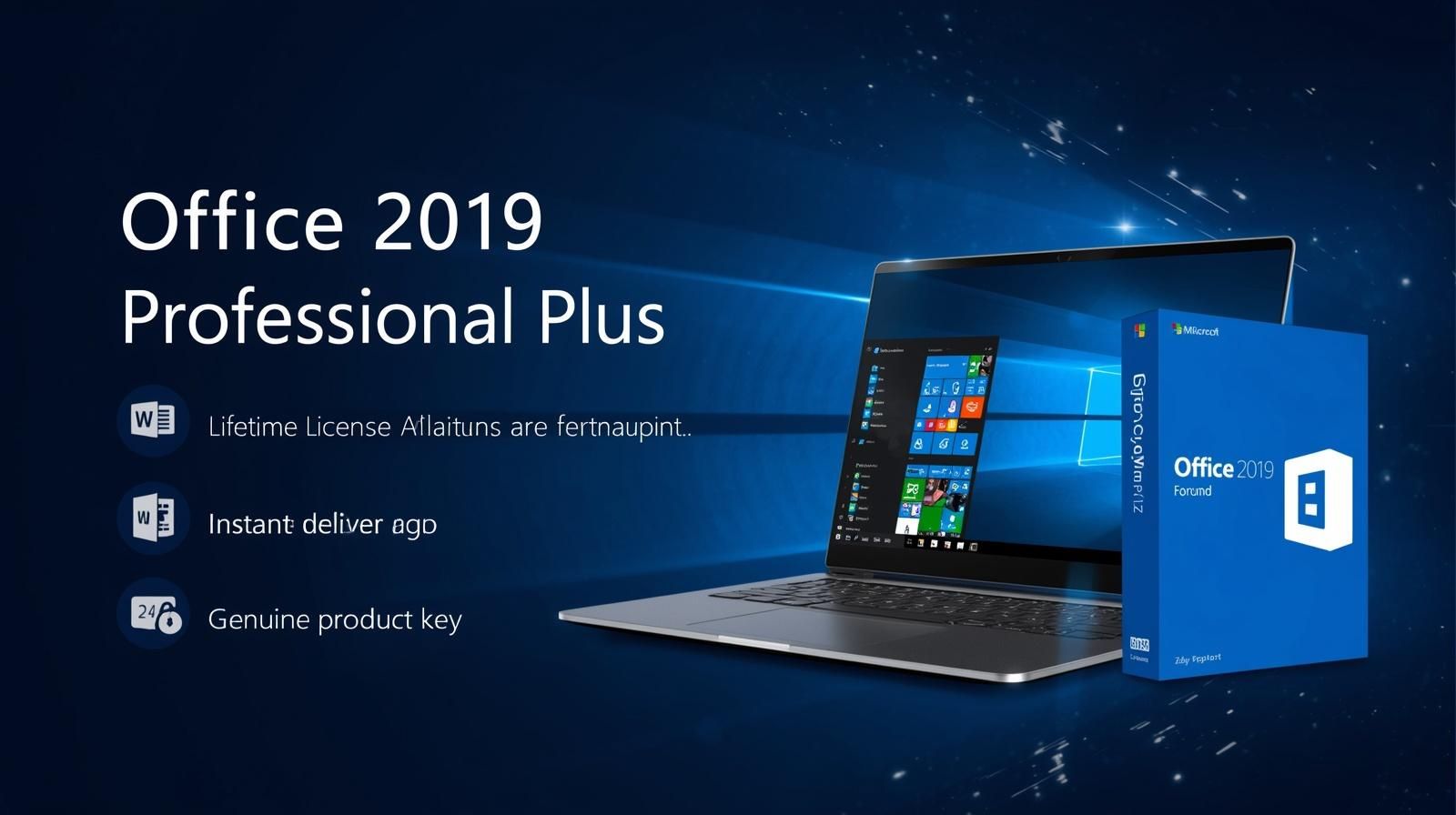
Microsoft Office 2019 Professional Plus remains one of the most powerful productivity suites available today. Millions of professionals, students, and businesses rely on this software daily. It delivers essential tools that streamline work and enhance efficiency. Microsoft Office 2019 Professional Plus offers a one-time purchase option. This makes it attractive for users who prefer avoiding monthly subscriptions. Unlike Microsoft 365, this version provides permanent licensing. You pay once and use it forever.
This comprehensive suite includes Word, Excel, PowerPoint, Outlook, Access, and Publisher. Each application brings unique capabilities to your workflow. Whether you create documents, analyze data, or design presentations, this package covers everything. Microsoft Office 2019 Professional Plus stands out because of its enhanced features. It builds upon previous versions with meaningful improvements. The software supports Windows 10 and Windows 11 operating systems. It runs smoothly on modern hardware configurations.
Many organizations choose Microsoft Office 2019 Professional Plus for its reliability. It works offline without requiring an internet connection. This feature proves invaluable in environments with limited connectivity. The suite also integrates seamlessly with existing business infrastructure. IT administrators appreciate its deployment flexibility and management options.
Throughout this guide, you will discover everything about this productivity suite. We cover features, system requirements, installation steps, and practical tips. You will also learn how it compares to other versions. Let us dive into the details that make this software exceptional.
Key Features That Make This Office Suite Essential
Word Processing Excellence with Microsoft Word 2019
Microsoft Word 2019 introduces several powerful enhancements. The Focus Mode eliminates distractions while you write. Learning Tools enhance reading comprehension by adjusting text spacing. You can now translate text directly within the document. The improved inking feature supports digital pen input naturally.
Word 2019 also includes enhanced LaTeX equation support. This benefits academic professionals and researchers significantly. The Read Aloud feature instantly converts text to speech. Accessibility improvements make documents usable for everyone. These features collectively transform how you create content.
Advanced Data Analysis in Excel 2019
Excel 2019 brings game-changing analytical capabilities. New functions like CONCAT, IFS, MAXIFS, and MINIFS simplify complex formulas. Power Pivot integration enables sophisticated data modeling. Funnel charts and 2D map charts visualize data beautifully. These visualization tools help communicate insights effectively.
The improved PivotTable features save considerable time. You can now create timeline slicers for date filtering. Excel 2019 also supports larger datasets with better performance. Analysts and accountants find these improvements remarkably useful. Data-driven decisions become easier with these powerful tools.
Dynamic Presentations with PowerPoint 2019
PowerPoint 2019 elevates your presentation game dramatically. The Morph transition creates cinematic animation effects effortlessly. You can zoom into specific slides during presentations. SVG and 3D model support adds visual richness. The improved ink replay feature animates handwritten content.
Presentation designers appreciate the enhanced export options. You can now export presentations in 4K resolution. The recording features capture narration and slide timings perfectly. These capabilities make remote presentations more engaging and professional.
Professional Email Management with Outlook 2019
Outlook 2019 delivers a refined email experience. The Focused Inbox separates important emails from clutter automatically. Updated contact cards display relevant information clearly. Travel and delivery summary cards organize trip details neatly. The improved search functionality finds emails faster than before.
Calendar management becomes smoother with visual updates. You can see multiple time zones simultaneously. The @mentions feature highlights emails requiring your attention. These productivity boosters keep communication organized and efficient.
Database Management Through Access 2019
Access 2019 continues serving as a powerful database solution. It supports a large number of data types for complex calculations. The new dBASE file support expands compatibility options. Improved chart modernization creates visually appealing data representations. Linked table management provides better control over connections.
Business users create custom database applications without coding expertise. Templates accelerate the development process significantly. Access 2019 bridges the gap between spreadsheets and full databases. Small businesses particularly benefit from its accessible design tools.
Professional Publishing with Publisher 2019
Publisher 2019 handles desktop publishing tasks professionally. You can create brochures, newsletters, and marketing materials easily. The intuitive interface guides users through design processes. Template options cover various business communication needs. Print-ready output ensures professional results every time.
System Requirements You Must Know Before Installation
Understanding hardware requirements prevents installation frustrations. Here are the essential specifications for running this productivity suite.
Operating System: Windows 10 or Windows 11 is required. Earlier Windows versions are not supported. This ensures optimal performance and security compatibility.
Processor: A minimum 1.6 GHz dual-core processor is needed. Faster processors deliver better performance with large files. Modern Intel or AMD processors work excellently.
Memory: At least 4 GB RAM is required for 64-bit installations. The 32-bit version needs a minimum of 2 GB. However, 8 GB RAM provides a smoother experience overall.
Storage: You need 4 GB of available disk space. Solid-state drives dramatically improve loading times. Keep additional space for documents and temporary files.
Display: A screen resolution of 1280 x 768 pixels is the minimum. Higher resolutions enhance the user interface experience. Graphics acceleration requires DirectX 9 or later support.
Internet: An internet connection is needed for initial activation. Ongoing usage does not require connectivity. Updates may require periodic internet access, however.
Step-by-Step Installation Guide for Seamless Setup
Installing this office productivity suite follows a straightforward process. These steps ensure successful deployment on your computer.
Step 1: Purchase a legitimate license from authorized retailers. Verify the product key before starting installation. Authentic licenses guarantee full feature access and support.
Step 2: Download the installation files from the official Microsoft website. Sign in to your Microsoft account to access downloads. Choose between the 32-bit and 64-bit versions wisely.
Step 3: Run the installer and follow on-screen prompts carefully. The setup wizard guides you through each stage. Accept the license agreement to proceed with installation.
Step 4: Enter your product key when prompted during setup. Double-check each character to avoid activation errors. The system validates your key against Microsoft servers.
Step 5: Select your preferred installation location and components. Custom installation lets you choose specific applications. This saves disk space if you need only certain programs.
Step 6: Wait for the installation to complete fully. The process typically takes 15 to 30 minutes. Avoid interrupting the installation to prevent corruption issues.
Step 7: Activate your software after installation finishes. Online activation usually completes within seconds. Phone activation serves as an alternative backup method.
Step 8: Run Windows Update to get the latest patches. Security updates protect your system from vulnerabilities. Feature updates may add improvements over time.
Microsoft Office 2019 vs. Microsoft 365: Which Should You Choose?
This comparison helps you make an informed purchasing decision. Both options serve different user needs effectively.
Pricing Structure Differences
Microsoft Office 2019 Professional Plus requires a single payment. You own the software permanently after purchase. Microsoft 365 charges monthly or annual subscription fees. Over time, subscription costs may exceed the one-time purchase price.
Feature Updates and New Capabilities
Microsoft 365 receives continuous feature updates regularly. New tools and improvements arrive throughout the year. The 2019 version receives only security and bug fix updates. Feature sets remain static after the initial release date.
Cloud Storage and Online Services
Microsoft 365 includes 1 TB of OneDrive cloud storage. It also provides access to web-based application versions. The 2019 suite does not include cloud storage benefits. Online collaboration features are limited in comparison.
Best Use Case Scenarios
Choose the 2019 version if you prefer one-time purchases. It suits users with stable workflow requirements perfectly. Select Microsoft 365 if you need the latest features always. Collaborative teams benefit more from subscription-based services.
Top Productivity Tips for Getting Maximum Value
Master Keyboard Shortcuts for Faster Work
Learning keyboard shortcuts saves hours of work weekly. Ctrl+Shift+V pastes text without formatting in Word. Alt+F1 creates instant charts from selected data in Excel. F5 starts presentations from the beginning in PowerPoint. These shortcuts become second nature with regular practice.
Customize the Quick Access Toolbar Efficiently
Place your most-used commands on the Quick Access Toolbar. This eliminates searching through ribbon menus repeatedly. Right-click any command and select “Add to Quick Access Toolbar.” Arrange commands in order of usage frequency for efficiency.
Use Templates to Accelerate Document Creation
Templates eliminate repetitive formatting work. Microsoft provides hundreds of professional templates for free. Create custom templates for frequently used document types. Share templates across your team for consistent branding standards.
Leverage the Tell Me Feature for Quick Help
The “Tell Me” search bar finds features instantly. Type what you want to do in plain language. The system suggests relevant commands and tools immediately. This feature reduces the learning curve for new users significantly.
Set Up AutoSave and Recovery Options
Configure AutoSave to protect your work from data loss. Set the recovery interval to every 5 minutes minimum. Store backup copies in a separate location for safety. These settings prevent catastrophic loss during unexpected shutdowns.
Security Features That Protect Your Documents
Microsoft Office 2019 Professional Plus includes robust security measures. These features safeguard sensitive business and personal information effectively.
Document Encryption and Password Protection
You can encrypt documents with strong AES 256-bit encryption. Password protection prevents unauthorized access to sensitive files. Set different passwords for opening and editing permissions. These controls ensure confidential information stays protected always.
Information Rights Management Integration
IRM restricts what recipients can do with your documents. Prevent forwarding, copying, or printing of sensitive emails. Set expiration dates on documents for automatic access removal. These enterprise-grade features meet compliance requirements effectively.
Protected View for Safer Document Handling
Protected View opens potentially dangerous files in a sandboxed environment. Downloaded files from the internet open in read-only mode first. This prevents malicious macros from executing automatically. Users can enable editing only after verifying file safety.
Digital Signatures for Document Authenticity
Add digital signatures to verify document integrity and origin. Recipients can confirm that documents remain unaltered after signing. This feature supports legal and regulatory compliance requirements. Digital signatures significantly build trust in business communications.
Troubleshooting Common Issues and Solutions
Activation Problems and How to Resolve Them
Activation failures often result from incorrect product key entry. Verify your key matches the purchased version exactly. Check your internet connection if online activation fails. Contact Microsoft support for persistent activation difficulties.
Performance Optimization for Slower Computers
Disable hardware graphics acceleration if applications run slowly. Reduce the number of add-ins loaded at startup. Clear the Office cache regularly to free system resources. Updating device drivers often resolves performance bottlenecks effectively.
Compatibility Issues with Older File Formats
Enable Compatibility Mode when working with older document formats. Save files in the latest format for optimal feature support. The Compatibility Checker identifies potential issues before saving. These tools ensure smooth collaboration across different Office versions.
Repair Installation Without Losing Settings
Use the built-in repair tool when applications malfunction unexpectedly. Navigate to Control Panel and select Programs and Features. Choose the repair option for your Office installation carefully. Quick Repair fixes most issues without requiring internet connectivity.
Licensing Options for Different User Needs
Volume Licensing for Enterprise Organizations
Large organizations benefit significantly from volume licensing agreements. These agreements simplify deployment across hundreds of computers. Centralized license management reduces administrative overhead considerably. Volume licensing often includes Software Assurance benefits additionally.
Retail Licensing for Individual Users
Retail licenses suit individual users and small offices perfectly. Each license activates on one computer exclusively. Transferring licenses to new computers is straightforward. Retail purchases include standard Microsoft support access always.
Academic Licensing for Educational Institutions
Students and educators access discounted pricing through academic licensing. Verification of educational status is required during purchase. These licenses provide full functionality at reduced costs. Educational institutions can deploy across campus computers efficiently.
How This Suite Enhances Remote Work Capabilities
Remote work demands reliable offline productivity tools desperately. This office suite delivers exactly what remote workers need daily.
Document creation happens without internet dependency. You can draft reports, build spreadsheets, and design presentations offline. Synchronization occurs automatically when connectivity becomes available again. This flexibility supports workers in various environments effectively.
Email management through Outlook keeps communication organized remotely. Calendar sharing coordinates schedules across distributed teams smoothly. The offline capabilities ensure productivity continues during travel periods. Remote workers maintain professional output regardless of location constraints.
Future-Proofing Your Investment in Office Software
Microsoft Office 2019 Professional Plus receives extended support until October 2025. Mainstream support has already concluded as of October 2023. Security updates continue throughout the extended support period, however. Planning your upgrade path now ensures uninterrupted productivity later.
Consider your long-term software strategy carefully today. Evaluate whether newer versions offer features you genuinely need. Many businesses continue using the 2019 version productively. The stability and reliability justify continued usage for many organizations.
When the time comes to upgrade, data migration is seamless. Documents created in 2019 open perfectly in newer versions. Your investment in learning the software carries forward completely. Skills transfer naturally to updated versions of the applications.
Frequently Asked Questions About This Productivity Suite
Can I install it on multiple computers?
Each license permits installation on one device only. Additional computers require separate license purchases. Volume licensing offers multi-device options for organizations.
Each license permits installation on one device only. Additional computers require separate license purchases. Volume licensing offers multi-device options for organizations.
Does it work with Windows 11?
Yes, it is fully compatible with Windows 11. Microsoft confirmed ongoing support for this combination. Performance runs optimally on the latest operating system.
Yes, it is fully compatible with Windows 11. Microsoft confirmed ongoing support for this combination. Performance runs optimally on the latest operating system.
Is an internet connection always required?
No, internet access is needed only for initial activation. All applications function completely offline afterward. Some features, like online templates, need connectivity occasionally.
No, internet access is needed only for initial activation. All applications function completely offline afterward. Some features, like online templates, need connectivity occasionally.
Can I upgrade to Microsoft 365 later?
Yes, you can transition to Microsoft 365 anytime easily. Your documents remain fully compatible across versions. The upgrade process does not affect existing files whatsoever.
Yes, you can transition to Microsoft 365 anytime easily. Your documents remain fully compatible across versions. The upgrade process does not affect existing files whatsoever.
How long will Microsoft support this version?
Extended support continues until October 14, 2025. Security patches arrive regularly during this period. Feature updates are not included in extended support, however.
Extended support continues until October 14, 2025. Security patches arrive regularly during this period. Feature updates are not included in extended support, however.
Making the Smart Productivity Choice
Microsoft Office 2019 Professional Plus delivers exceptional value for productivity-focused users. Its comprehensive application suite covers virtually every business need imaginable. The one-time purchase model appeals to budget-conscious individuals and organizations alike. Robust security features protect sensitive information reliably throughout daily operations.
This software proves that permanent licensing still holds tremendous value. Not everyone needs or wants subscription-based software solutions. The stability, offline capabilities, and professional features justify the investment completely. Whether you manage data, create documents, or deliver presentations, this suite empowers excellence.
Take action today and equip yourself with proven productivity tools. Your efficiency, creativity, and professional output will improve dramatically. Microsoft Office 2019 Professional Plus remains a smart, powerful, and reliable choice for anyone seeking top-tier office software without recurring costs.