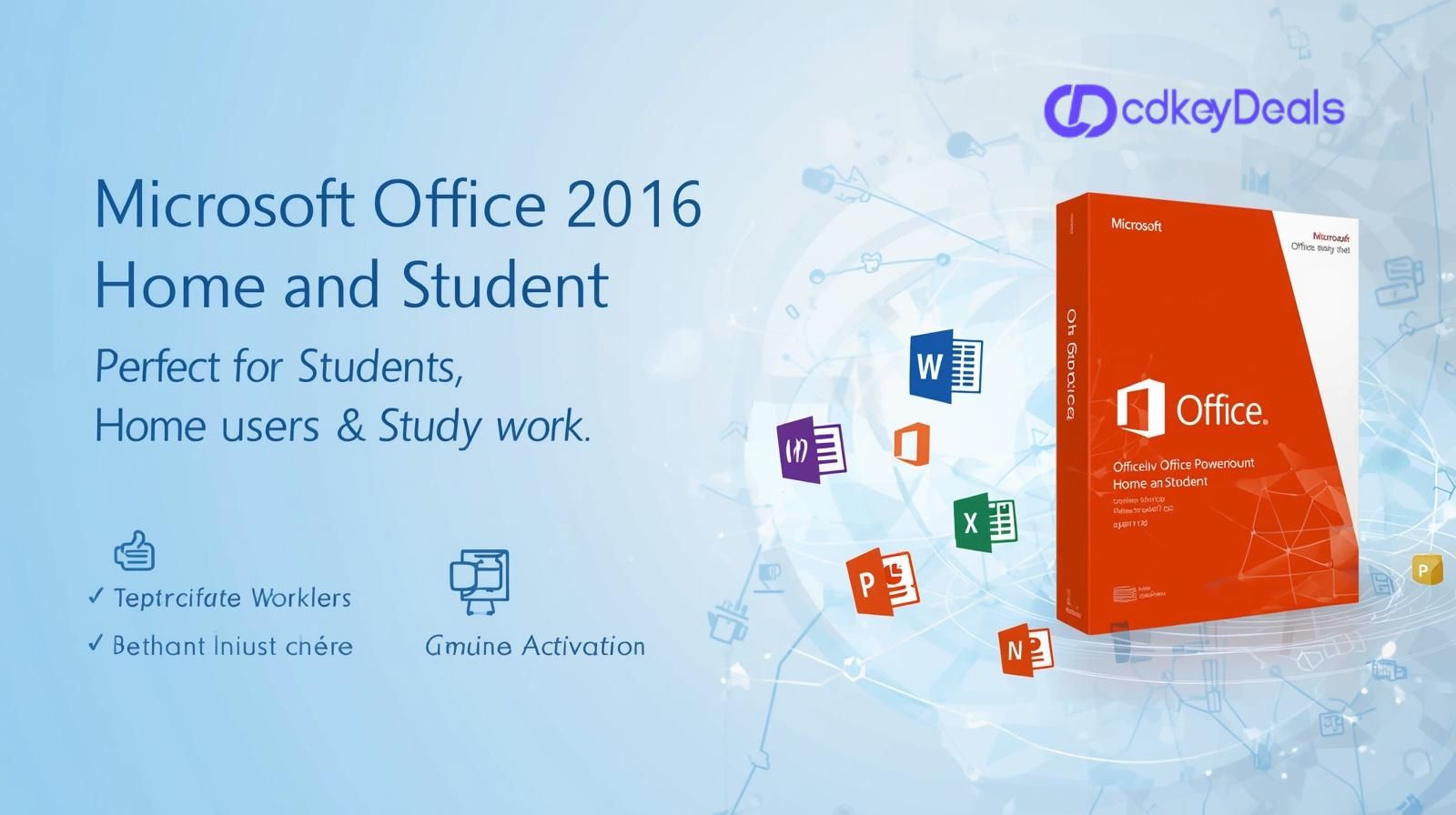
Microsoft Office 2016 Home and Student still helps many people write, calculate, and present with confidence. It stays popular because it is simple, fast, and familiar. Also, it works well on many older PCs that struggle with newer tools. In this updated guide, you will learn what it includes, who it fits, how it compares with Microsoft 365, and how to use it safely in 2026. You will also see practical tips that improve speed and reduce stress.
Why Microsoft Office 2016 Home and Student still matters
Many Microsoft Office 2016 Home and Student users want stable software that does not change every week. Office 2016 offers that steady feel. It does not push constant feature redesigns. So, you can focus on your work, not the interface.
It also fits people who prefer a one-time purchase model. Subscriptions can be great. Yet, some budgets need predictability. Because of that, this version remains in demand on resale markets and among families.
However, you should understand what you get. You should also know the limits, especially around support and security updates. That knowledge helps you make a safe decision.
What’s included in this edition
Office Home and Student 2016 typically includes:
- Word 2016 for writing and formatting
- Excel 2016 for spreadsheets and charts
- PowerPoint 2016 for slides and presentations
- OneNote 2016 may be included, depending on the installer and Windows version.
What it usually does not include:
- Outlook
- Access
- Publisher
- Teams desktop integration
- Ongoing feature upgrades that arrive with Microsoft 365
So, it is best for core school and home tasks. Yet, it may not fit advanced needs.
Microsoft support status and what it means in 2026
Microsoft ended extended support for Office 2016 in October 2025. That matters for security. After that date, Microsoft no longer provides security patches for most Office 2016 apps.
Even so, people still use it. Therefore, you should reduce risk with smart habits:
- Keep Windows fully updated.
- Use a modern browser for downloads and email.
- Avoid unknown macros and attachments.
- Store backups in more than one place.
These steps do not replace patches. Yet, they lower the chance of trouble.
Who should consider Office 2016 Home and Student now?
This suite can still make sense if you match these points:
- You mainly write essays, reports, or resumes.
- You build simple budgets or school spreadsheets.
- You create slides for class or community events.
- You use a laptop that struggles with heavier apps.
- You do not need Outlook in the suite.
Also, it can suit offline work. If your internet is limited, local apps feel smoother. In addition, you avoid ongoing fees.
Yet, if you share files daily with teams, a newer option may feel easier.
When Microsoft 365 is the better choice
Microsoft 365 often works best when you need:
- Real-time co-authoring in Word or PowerPoint
- Strong cloud storage and sharing controls
- New features that arrive through updates
- Current security support from Microsoft
- Smooth integration with Teams and OneDrive
If you work across devices, Microsoft 365 can reduce friction. Also, schools may provide it for free. So, check your school account first.
Key differences: Office 2016 vs Office 2021 vs Microsoft 365
Here is a quick, clear view:
- Office 2016: older, stable interface, no new security patches after 2025
- Office 2021: newer, still a one-time purchase, better modern file handling
- Microsoft 365: subscription, always updated, best collaboration tools
If you need long-term safety, newer software wins. Yet, if your PC is older, 2016 can still feel quicker.
Buying tips: how to avoid fake keys and bad downloads
The market for older licenses attracts scammers. So, you need a careful plan.
Use these safety checks:
- Buy from known retailers when possible.
- Avoid “too cheap” keys that look unreal.
- Look for clear license terms before you pay.
- Do not download installers from random sites.
- Use Microsoft’s official account tools to manage installs.
Also, keep proof of purchase. If something breaks later, that record helps.
Installation and activation: simple steps that reduce stress
Many issues happen because people rush to set up. Instead, follow a calm flow:
- Check your Windows version and free storage.
- Remove older trial Office versions first.
- Restart the PC after uninstall.
- Install using a trusted installer source.
- Activate with the correct Microsoft account or key method.
If activation fails, confirm time and date settings. Also, check if the key matches the edition. That mismatch is common.
Using Office 2016 smoothly on Windows 10 or Windows 11
Office 2016 often runs well on Windows 10. On Windows 11, results vary by build and updates. Still, many users report that it works fine for basics.
To improve stability:
- Run Office apps as a normal user, not admin.
- Keep graphics drivers updated for PowerPoint.
- Disable unused add-ins in Word and Excel.
- Save files locally first, then copy to cloud storage.
These steps reduce crashes and odd lag.
Productivity wins inside Word 2016 for students.
Word 2016 offers features that still save time:
- The Navigation Pane helps you jump between headings.
- Styles keep formatting clean and consistent.
- Track Changes supports teacher feedback and revisions.
- Citations and bibliography tools help with reports.
Also, you can create templates for lab reports and essays. Then, you reuse them each term. That simple habit adds speed.
Short tip: use Ctrl + F for quick search. Also, use Ctrl + H for replace. It saves hours across a semester.
Excel 2016 tips for home budgets and school data
Excel 2016 remains powerful for everyday math. You can:
- Build monthly budgets with SUM and AVERAGE.
- Use conditional formatting for quick alerts.
- Create charts that make projects look polished.
- Filter data for science class or surveys.
If your sheet feels slow, reduce volatile formulas. Also, limit full-column references when possible. That helps older laptops.
In addition, protect sheets with a password if you share a family computer. It prevents accidental edits.
PowerPoint 2016: make presentations that look modern
Even though it is older, you can still design clean slides.
Use these habits:
- Keep one idea per slide.
- Use large text and strong contrast.
- Use images that match your topic.
- Limit animations to simple fades.
Also, practice with Presenter View if you can. It reduces stress and improves timing.
If you share your deck, export a PDF too. It preserves layout on other devices.
File compatibility: working with newer Office users
Many people worry about compatibility. The good news is Office 2016 supports common modern formats like DOCX, XLSX, and PPTX.
Still, issues can happen with newer fonts or advanced features. So, follow these fixes:
- Ask others to save in standard formats.
- Avoid rare fonts that may not exist on other PCs.
- Use “Check Compatibility” before you send files.
- Export to PDF when the layout must not change.
Because of that, your homework still looks correct.
Cloud options with Office 2016: OneDrive and smart backups
You can still use OneDrive as a backup location. Yet, Office 2016 does not offer all the newest co-authoring features. Even so, backups matter more than fancy tools.
A simple backup plan:
- Save active work locally.
- Copy finished work to OneDrive weekly.
- Keep a second backup on a USB drive monthly.
This plan protects you from device loss and file corruption.
Security basics for older Office versions
Since security updates ended, you should tighten settings.
Use these steps:
- Disable macros by default.
- Only enable a macro you fully trust.
- Use antivirus protection that stays updated.
- Avoid opening unknown attachments.
- Use protected view for downloads.
Also, use strong Windows login passwords. If possible, enable device encryption. That adds another layer of safety.
Accessibility and inclusive design in Office 2016
Good content should be easy to read for everyone. Office 2016 can support that goal.
Try these practices:
- Use clear headings in Word.
- Keep paragraphs short and structured.
- Use alt text for images in Word and PowerPoint.
- Avoid color-only meaning in charts.
- Choose readable fonts and spacing.
These choices help classmates, teachers, and family members. They also improve your grades and clarity.
Troubleshooting common problems fast
Here are frequent issues and quick fixes:
The office won’t open
- Restart the PC.
- Start in Safe Mode.
- Disable add-ins.
Activation errors
- Check that the edition matches the key.
- Confirm date and time.
- Sign in with the right Microsoft account.
Word or Excel crashes
- Update Windows.
- Repair the Office from the Control Panel.
- Update graphics drivers.
If problems keep repeating, consider migrating to a newer suite. It may save time long-term.
Best alternatives if you decide not to use Office 2016
If you need a safer or newer choice, consider:
- Microsoft 365 for the latest features and security
- Office 2021 or Office 2024 for a newer one-time purchase option
- LibreOffice for free offline docs and spreadsheets
- Google Docs for easy sharing and browser access
Each option has trade-offs. Choose based on your device, your budget, and your need for collaboration.
A long, practical guide: how to decide with confidence
Choosing productivity software looks simple. Yet, it can affect your schoolwork, your finances, and your daily routine. So, use a clear decision method instead of guessing. First, list what you do each week. You may write essays, track expenses, and prepare slides. If those tasks are basic, older software can still meet the need. Next, check your device limits. Older laptops may run faster with lighter tools. Also, consider your internet access. If you often work offline, local apps can feel more reliable. Then, think about file sharing. If you exchange files with teachers or group projects, you need smooth compatibility. Office 2016 handles common formats well, yet newer features may not carry over. After that, look at security. Since Office 2016 no longer receives ongoing security patches, you should be honest about your risk level. If you frequently download files or open email attachments, a supported option may be safer. Also, factor in how long you plan to keep your current computer. If you expect another three or four years, a newer Office release or Microsoft 365 may reduce future problems. Finally, decide based on total cost, not just purchase price. Subscriptions cost more over time, yet they include updates and cloud perks. A one-time license costs less upfront, yet it may age faster. When you walk through these steps, your choice becomes clear. You stop worrying and start working.
FAQs people ask before buying or using Office 2016
Is Office 2016 still good for students?
Yes, it can be good for writing, spreadsheets, and slides. Yet, it lacks current security support.
Can I use it on Windows 11?
It often works, but it depends on updates and device drivers. Test stability after installation.
Does it include Outlook?
No, Home and Student editions usually do not include Outlook.
Is it a one-time purchase?
It is commonly sold as a one-time license. Terms depend on the seller and license type.
Will my DOCX and PPTX files open in newer Office?
Yes, in most cases they will open fine. Still, some new effects may not match perfectly.
A clear path forward
If you want a familiar suite for basic school and home tasks, Office 2016 can still deliver a smooth experience. However, you should weigh security and support limits in 2026. Use safe buying habits, keep your PC updated, and back up files often. If you need teamwork features or long-term protection, a supported alternative will serve you better.